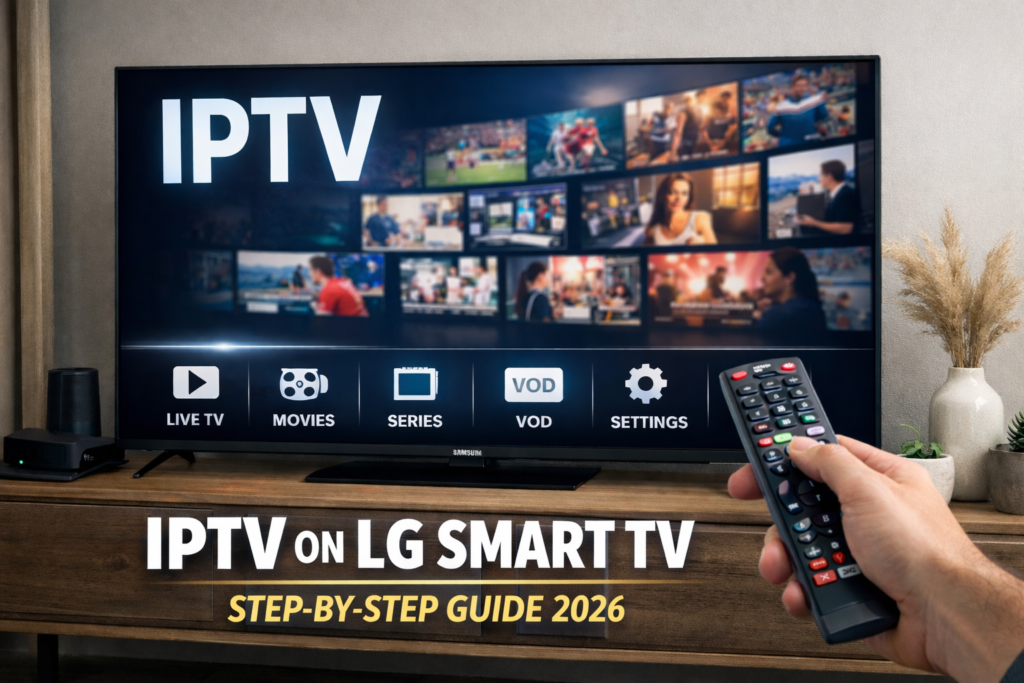
Setting up IPTV on LG Smart TV is one of the easiest ways to enjoy live TV, movies, and series without using extra streaming hardware. In many cases, all you need is a compatible app, your IPTV login details, and a stable internet connection. Once everything is entered correctly, you can start streaming directly from your TV. However, many users still run into problems at the beginning. Some install the wrong player. Others are unsure whether they should use an M3U playlist or Xtream Codes login. In addition, a few users get stuck when channels do not load after installation. Because of that, it is important to follow the correct steps from the start. If you are still looking at package options first, you can check our UK IPTV plans to view the available subscriptions. You can also visit our main IPTV UK page to explore more setup guides and support content. In this guide, you will learn how to install a player, add your IPTV details, avoid common mistakes, and improve performance on your LG Smart TV in 2026. Why Many Users Choose IPTV on LG Smart TV LG Smart TVs are a strong choice for IPTV because they offer a clean interface, good display quality, and app support through the LG content store. As a result, many users can set up everything directly on the television without buying an external box. At the same time, LG TVs are popular because they are simple to use. The menus are clear, the remote navigation is smooth, and the app installation process is usually very straightforward. Therefore, even beginners can complete the setup without much difficulty. Some of the main advantages include: Because of these advantages, IPTV on LG Smart TV is often one of the first options users try when they want direct streaming on a large screen. What You Need Before Setting Up IPTV on LG Smart TV Before you start, make sure you have everything ready. This saves time and reduces the chance of setup problems. You will need: In most cases, providers will give you one of the following: M3U Playlist URL This is a direct playlist link that you paste into the IPTV app. Xtream Codes API Login This includes: App Activation or Device ID Some Smart TV apps require device activation instead of manual playlist login. Since different apps support different login formats, always confirm what you received before installing the player. Is It Easy to Use IPTV on LG Smart TV? Yes, for most users it is easy. In fact, once the correct app is installed, the rest of the process becomes very simple. You only need to enter your details correctly and allow the content to load. Still, the key is using the right app and the right login format. If you use the wrong one, the setup may fail even if your subscription is active. So paying attention to small details makes a big difference. Step 1: Connect Your LG Smart TV to the Internet First, make sure your TV is properly connected to the internet. You can do this through Wi-Fi or Ethernet. Go to the network settings on your LG TV and confirm that the connection is active. If the signal is weak, IPTV may buffer or fail to load channels properly. Because of that, it is always better to test the connection first before downloading the app. If you can use a wired connection, that may provide more stable performance. However, a good Wi-Fi connection can also work well if the signal is strong enough. Step 2: Open the LG Content Store After that, open the LG Content Store from your TV menu. This is where you will find the player app you need. Use the search bar to look for a compatible IPTV player. Once you find one that supports the login format you have, install it and wait for the process to finish. Then open the app directly from the TV home screen. Step 3: Choose the Correct IPTV Login Method When the app opens, it will usually ask how you want to add your subscription. This part is extremely important because many users select the wrong option and think the service is not working. Normally, you will see choices such as: If your provider gave you a playlist link, use the M3U option. On the other hand, if you received a server URL, username, and password, choose Xtream Codes. For that reason, always match the login method to the details you were sent. Step 4: Enter Your IPTV Details Carefully Now enter the details exactly as provided. If you are using Xtream Codes, make sure: If you are using an M3U URL, paste the full link without changing anything. Even one wrong character can stop the playlist from loading. This is why copying and pasting is always better than typing manually when possible. Step 5: Wait for the App to Load the Content After submitting your details, the player will start importing the playlist. Depending on the size of the subscription, this may take a little time. Usually, the categories will include: Do not close the app too quickly during this stage. Instead, wait until the content loads fully. After that, test a few channels and open other sections to make sure everything is working correctly. Step 6: Adjust the Settings for Better Streaming Once the app is working, it is a good idea to review the settings. Many IPTV players include useful options that improve playback and navigation. For example, you may be able to change: In many cases, small changes here can improve the viewing experience significantly. Therefore, spending a few minutes in the settings is worth it. Best Apps for IPTV on LG Smart TV The best app depends on what login type you have and what features you need. Some users prefer apps with a very simple layout. Others want extra options like favorites, VOD categories, EPG, and parental controls. A